Testing Emails
Learn how to send test emails to verify your templates render correctly before deploying to production.
Prerequisites
- A verified email address or domain in AWS SES
- An active template version deployed to SES
- SES account out of sandbox mode, or recipient email verified
AWS SES Sandbox Mode
New AWS accounts are placed in SES sandbox mode by default. In sandbox mode, you can only send emails to email addresses that are also verified in your SES account—not just any address.
This means even if your "From" address is verified, test emails will fail unless the recipient email is also verified. You'll see an error like: Email address is not verified
To fix this: Either verify your recipient email address in SES, or request production access from AWS to remove sandbox restrictions entirely.
Sending a Test Email
Secure Testing
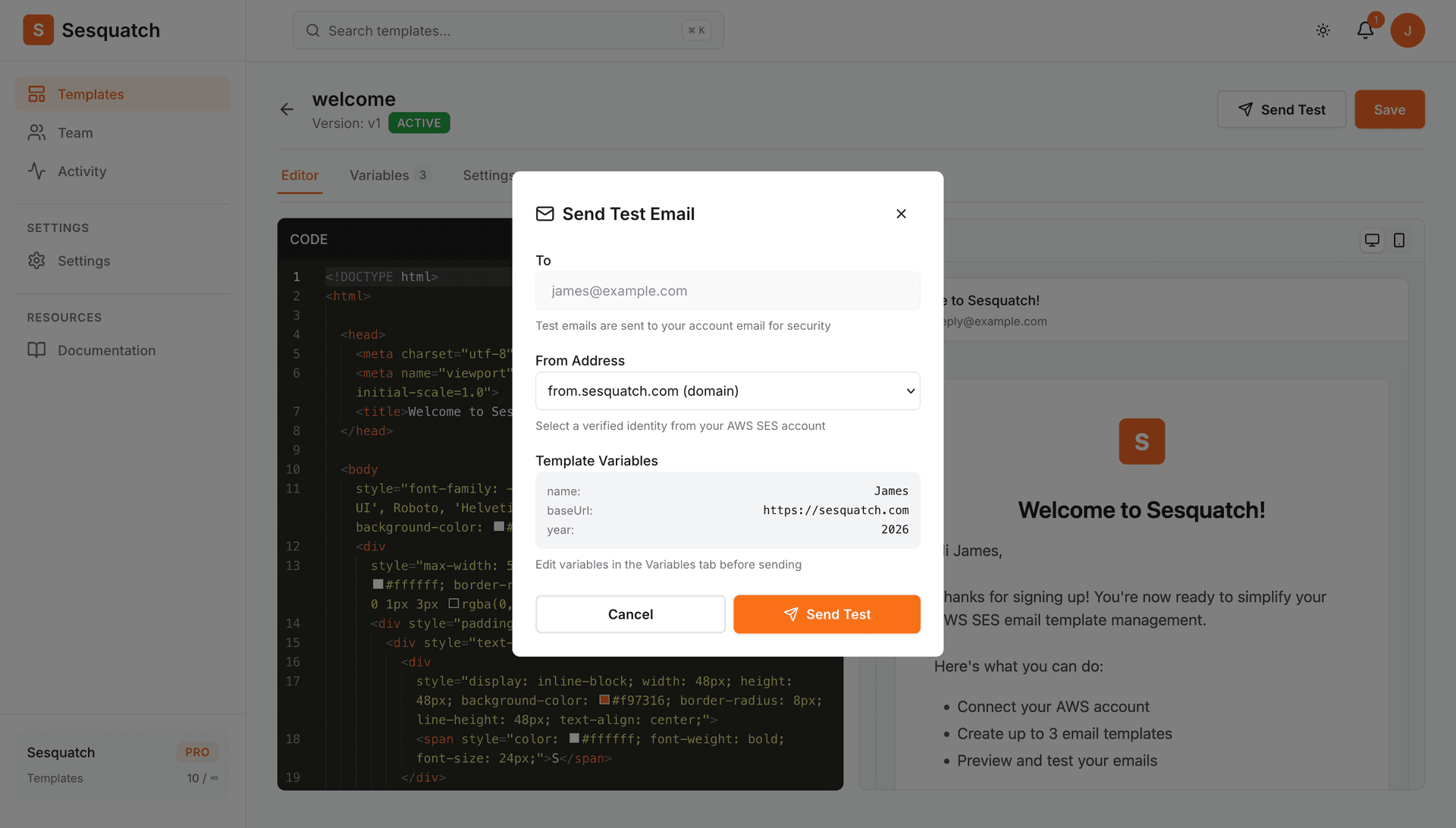
For security and anti-spam protection, test emails are sent only to your account email address. The email is delivered through your connected AWS SES, ensuring you test the actual delivery path.
- 1.Open a template in the editor
- 2.Click the "Send Test" button in the toolbar
- 3.Enter a verified "From" address from your AWS SES account
- 4.Configure template variables in the Variables tab
- 5.Click "Send Test" - the email will arrive in your account inbox
Template Variables
If your template uses variables (like {{name}} or {{orderTotal}}), you'll need to provide test values before sending.
- 1.In the template editor, open the Variables tab
- 2.Fill in test values for each variable your template uses
- 3.When you click "Send Test", the modal will show a preview of your variables and their values
- 4.Confirm and send—the test email will render with your variable values
Variable values are saved with the template
The values you enter in the Variables tab are saved with your template, so you don't need to re-enter them each time you send a test email.
Deploying to AWS SES
Before you can send test emails (or production emails), you need to deploy your template to AWS SES by setting a version as "active".
- 1.Save your template changes
- 2.From the template list, click the dropdown menu on the version
- 3.Select "Set as Active"
- 4.The template will be deployed to AWS SES
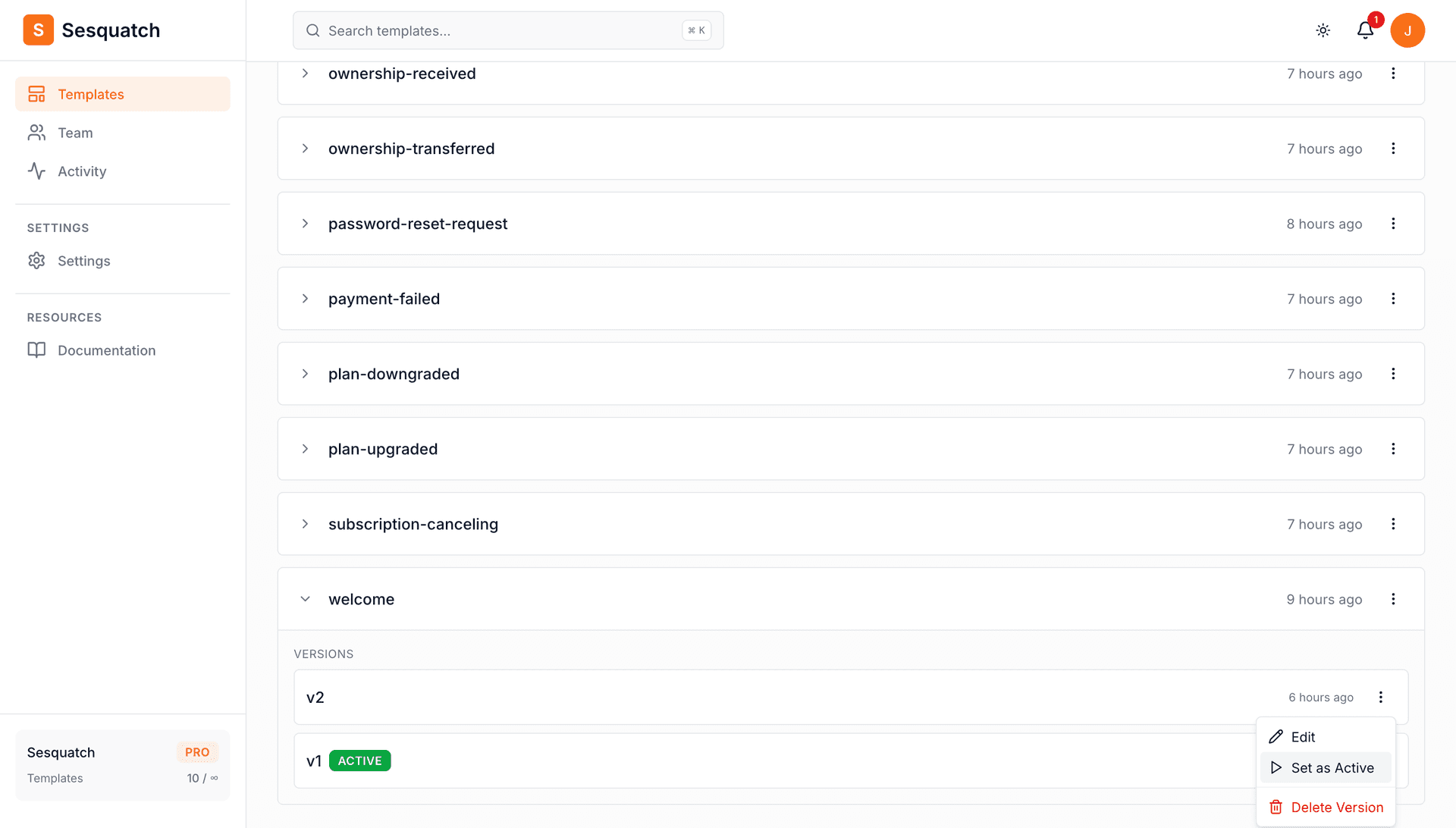
Once a version is active, it will show an "Active" badge. Only the active version is deployed to AWS SES and used when sending emails.
AWS SES Sending Limits
Your AWS SES account has sending quotas that depend on whether you're in sandbox or production mode.
Sandbox Mode
200
emails per 24-hour period
Only verified recipients allowed
Production Mode
50,000+
emails per 24-hour period
Quota increases with good reputation
To check your current limits, visit the SES Account Dashboard in AWS Console. You can request production access to remove sandbox restrictions.
Troubleshooting
"Email address is not verified"
This error occurs when your SES account is in sandbox mode. In sandbox, both the sender (From) and recipient (To) addresses must be verified identities. Since test emails go to your account email, you'll need to either:
- Verify your account email address in your AWS SES console, or
- Request production access to remove sandbox restrictions
"Template not found"
Make sure you've set a version as "active" to deploy it to SES. Only active versions exist in AWS SES.
"Invalid template data"
Make sure your test data JSON is valid and includes all required variables. Missing variables will cause SES to reject the email.
Email not received
Check your spam folder. If still not received, verify that SES sending is working by checking the SES console for bounces or complaints.
Best Practices
Test with Real Data
Use realistic test data that matches what your application will send in production.
Use the Preview
Use the live preview panel to quickly iterate on your template before sending test emails.
Test Edge Cases
Test with long names, missing optional data, and special characters to ensure graceful handling.
Check Mobile Rendering
Open test emails on a mobile device to verify the responsive design works correctly.