Connecting AWS
Learn how to securely connect your AWS account to Sesquatch using IAM roles. This cross-account access method ensures your credentials are never stored.
Security First
Sesquatch uses IAM role assumption to access your AWS resources. This means we never store your AWS credentials. You maintain full control and can revoke access at any time by deleting the IAM role.
Prerequisites
- An AWS account with SES enabled in your desired region
- Permissions to create CloudFormation stacks (or IAM roles/policies for manual setup)
SES Sandbox Mode
New AWS accounts have SES in sandbox mode, which restricts who you can send emails to. You can still connect to Sesquatch and manage templates, but to send test emails to unverified addresses, you'll need to request production access from AWS. See the Testing Emails guide for more details.
Connection Methods
There are two ways to connect your AWS account. Both create the same IAM role with identical permissions.
Launch Stack (Recommended)
One-click deployment using AWS CloudFormation. Opens the AWS Console with everything pre-configured.
- Fastest setup
- No manual configuration
- External ID pre-filled
Manual Setup
Copy the CloudFormation template and deploy it yourself. Useful for restricted environments or custom workflows.
- Full control over deployment
- Review template before deploying
- Works with restricted IAM
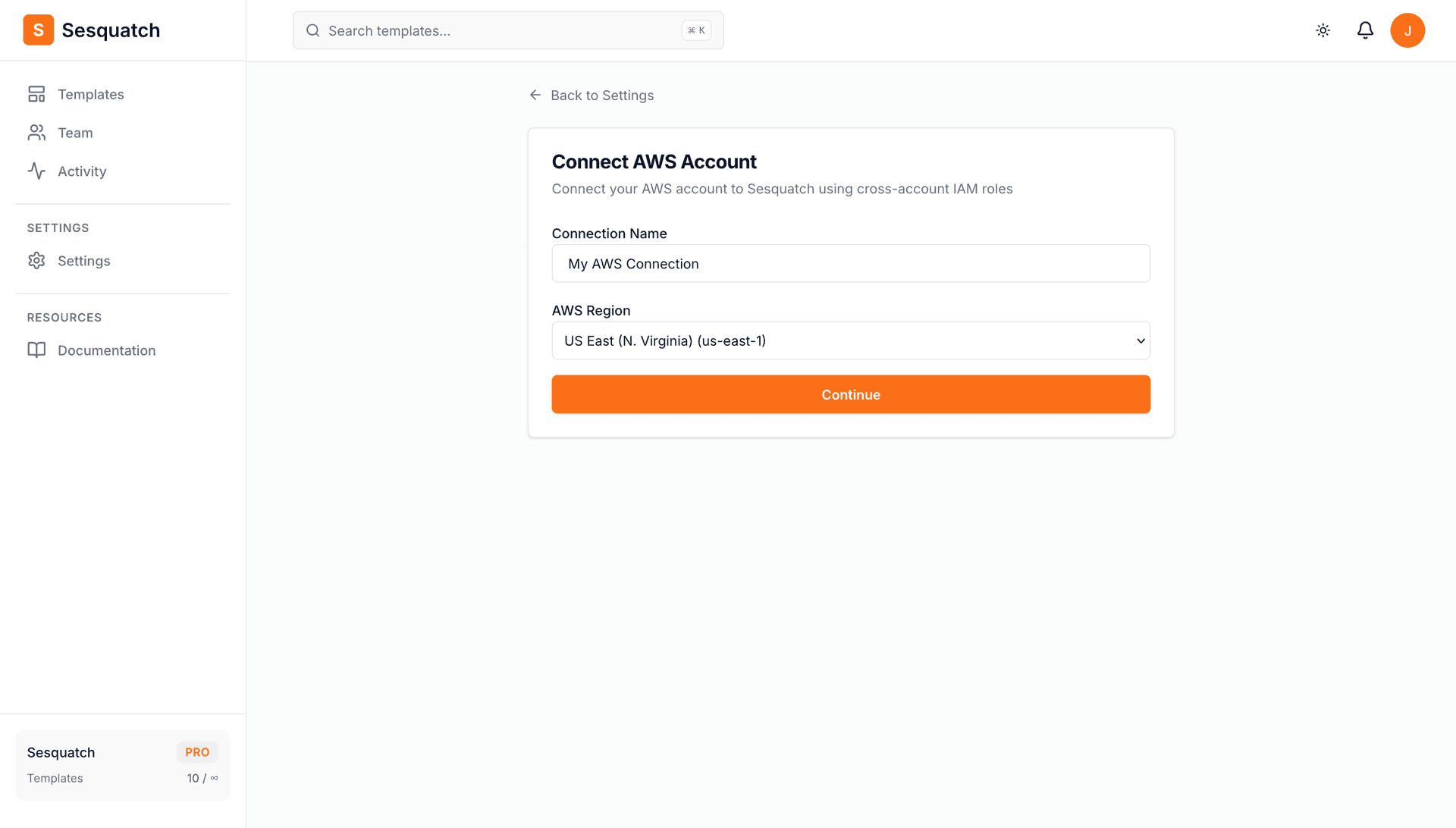
Step 1: Start the Connection Wizard
- 1.Go to Settings → Connections in your Sesquatch dashboard
- 2.Click "Connect AWS Account"
- 3.Enter a name for this connection (e.g., "My AWS Connection")
- 4.Select your AWS region
- 5.Click "Continue" to see the IAM role setup options
Step 2: Create the IAM Role
Choose your preferred method to create the IAM role in AWS.
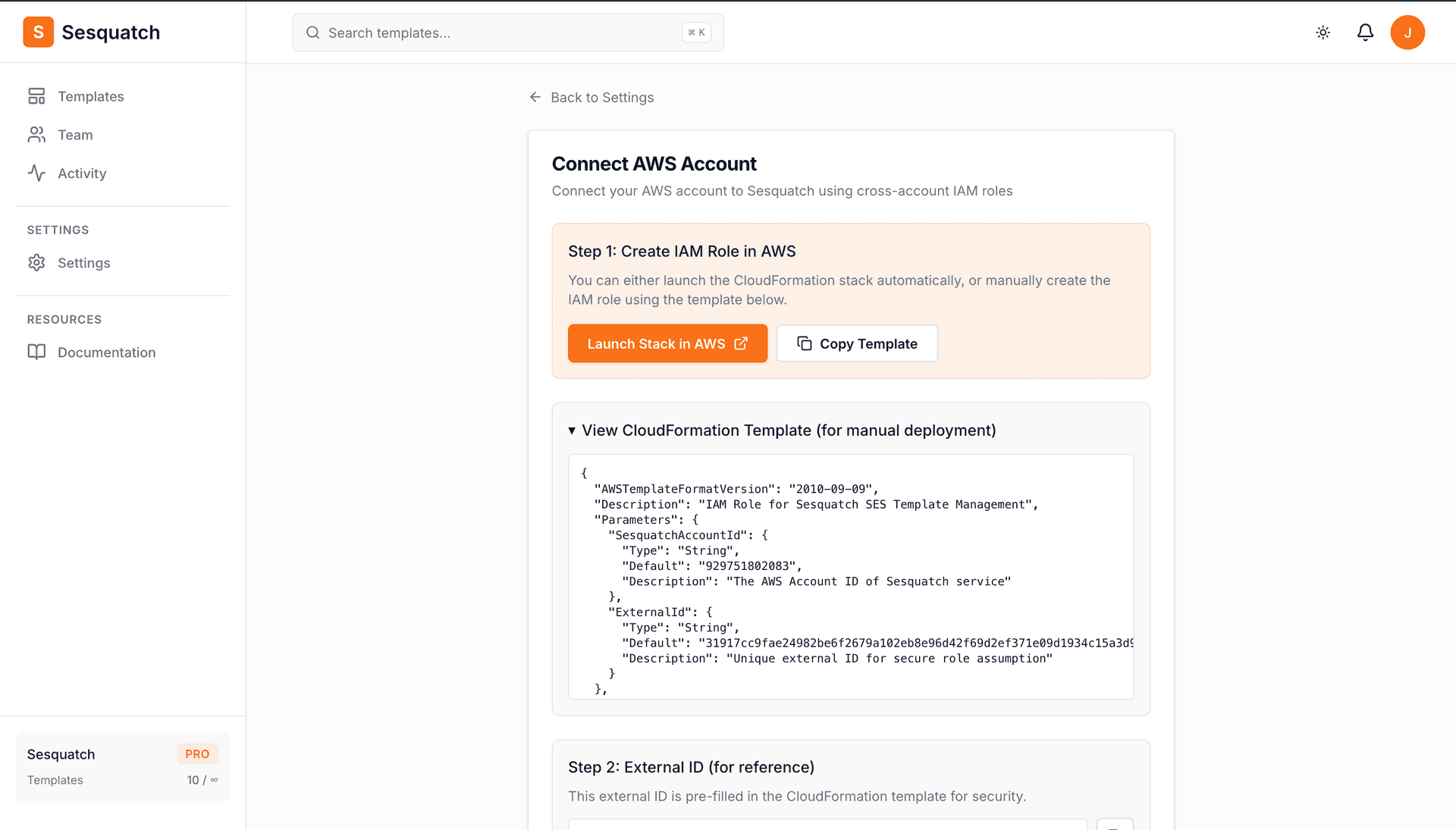
Option A: Launch Stack (Recommended)
- 1.Click the "Launch Stack in AWS" button
- 2.You'll be redirected to the AWS CloudFormation console with the template pre-loaded
- 3.Review the stack details (the External ID is already filled in)
- 4.Check the box acknowledging IAM resource creation and click "Create stack"
- 5.Wait for the stack status to show
CREATE_COMPLETE
Option B: Manual Setup
- 1.Click "Copy Template" to copy the CloudFormation JSON
- 2.Expand "View CloudFormation Template" to see and copy the template
- 3.Open the AWS CloudFormation console
- 4.Click "Create stack" → "With new resources (standard)"
- 5.Select "Upload a template file" and paste the copied template
- 6.Complete the stack creation wizard
About the External ID
Sesquatch generates a unique External ID for each connection. This ID is embedded in the CloudFormation template and prevents the "confused deputy" security problem. The External ID is shown in Step 2 of the wizard for your reference.
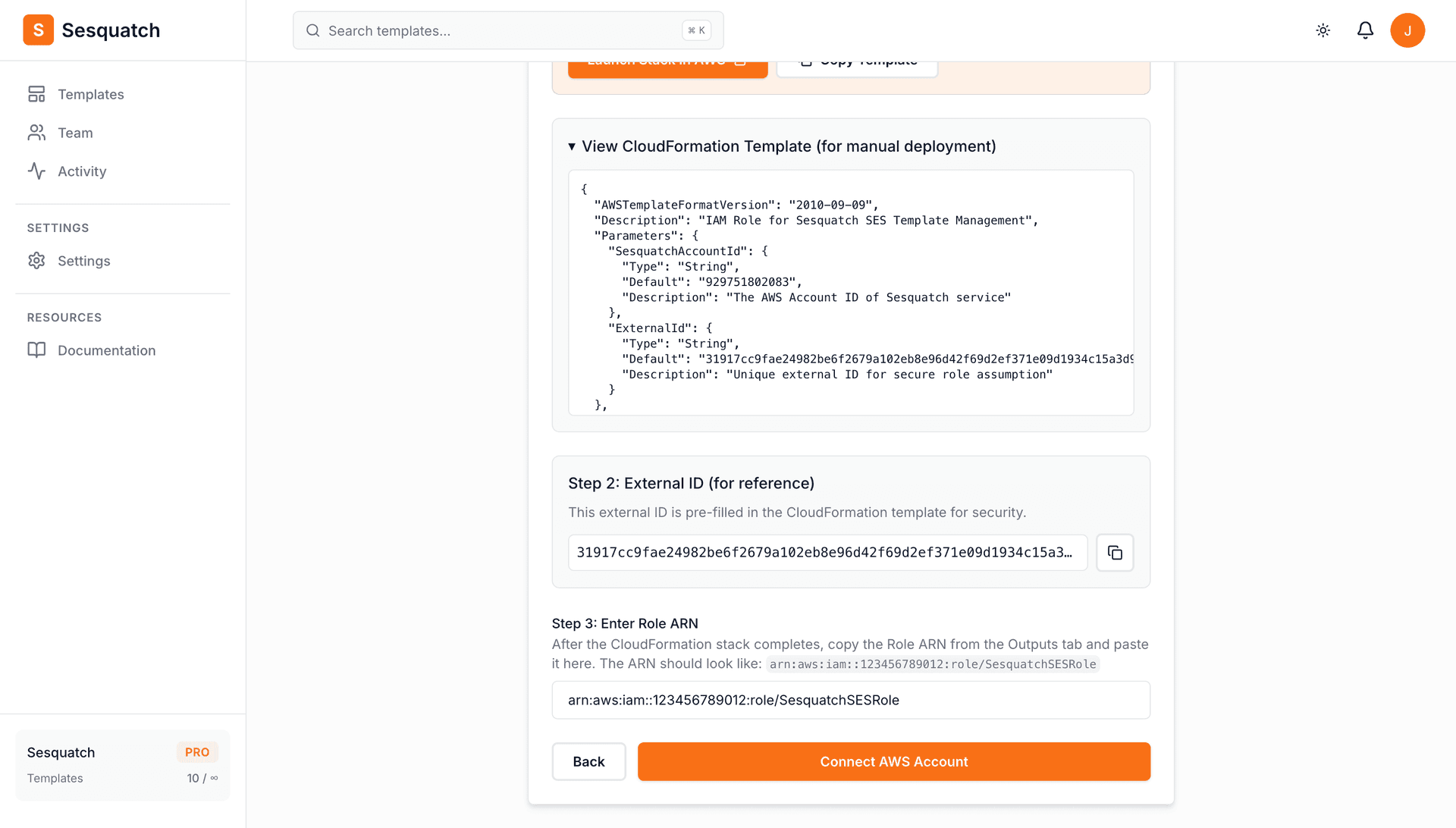
Step 3: Enter the Role ARN
After the CloudFormation stack completes, you need to copy the Role ARN back to Sesquatch.
- 1.In the AWS CloudFormation console, click on your completed stack
- 2.Go to the Outputs tab
- 3.Copy the
RoleArnvalue (it looks likearn:aws:iam::123456789012:role/SesquatchSESRole) - 4.Paste the Role ARN in Sesquatch
- 5.Click "Connect AWS Account" to complete the setup
Sesquatch will verify the connection by assuming the role. If successful, your AWS account is connected and ready to use.
What Gets Created
The CloudFormation template creates the following resources in your AWS account:
IAM Role: SesquatchSESRole
Allows Sesquatch to assume this role using your unique External ID.
IAM Policy: SesquatchSESPolicy
Grants minimal SES permissions: create, update, delete, list, and send templates.
To revoke access, simply delete the CloudFormation stack or the IAM role from your AWS account.
Troubleshooting
"Access Denied" Error
This usually means the Role ARN is incorrect or the CloudFormation stack didn't complete successfully. Double check the ARN from the Outputs tab and ensure the stack shows CREATE_COMPLETE.
Stack Creation Failed
Check the Events tab in CloudFormation for error details. The most common issues are insufficient IAM permissions to create roles. You may need to contact your AWS administrator.
"Invalid ARN" Error
The Role ARN should be in the format: arn:aws:iam::ACCOUNT_ID:role/ROLE_NAME. Copy it directly from the CloudFormation Outputs tab to avoid typos.
SES Not Available in Region
Not all AWS regions support SES. Make sure SES is enabled in your selected region. Check the AWS SES region availability documentation.