Creating Templates
Learn how to create beautiful, responsive email templates using the Sesquatch visual editor. This guide covers everything from basic structure to advanced variables.
HTML Email Templates
Sesquatch uses standard HTML for email templates. Write your templates using HTML and inline CSS, and Sesquatch handles deploying them to AWS SES.
Syntax Highlighting
Write HTML with full syntax highlighting and auto-complete in the editor.
Desktop & Mobile Preview
Preview your templates across desktop and mobile viewports.
Live Preview
See changes in real-time as you edit your template.
Creating Your First Template
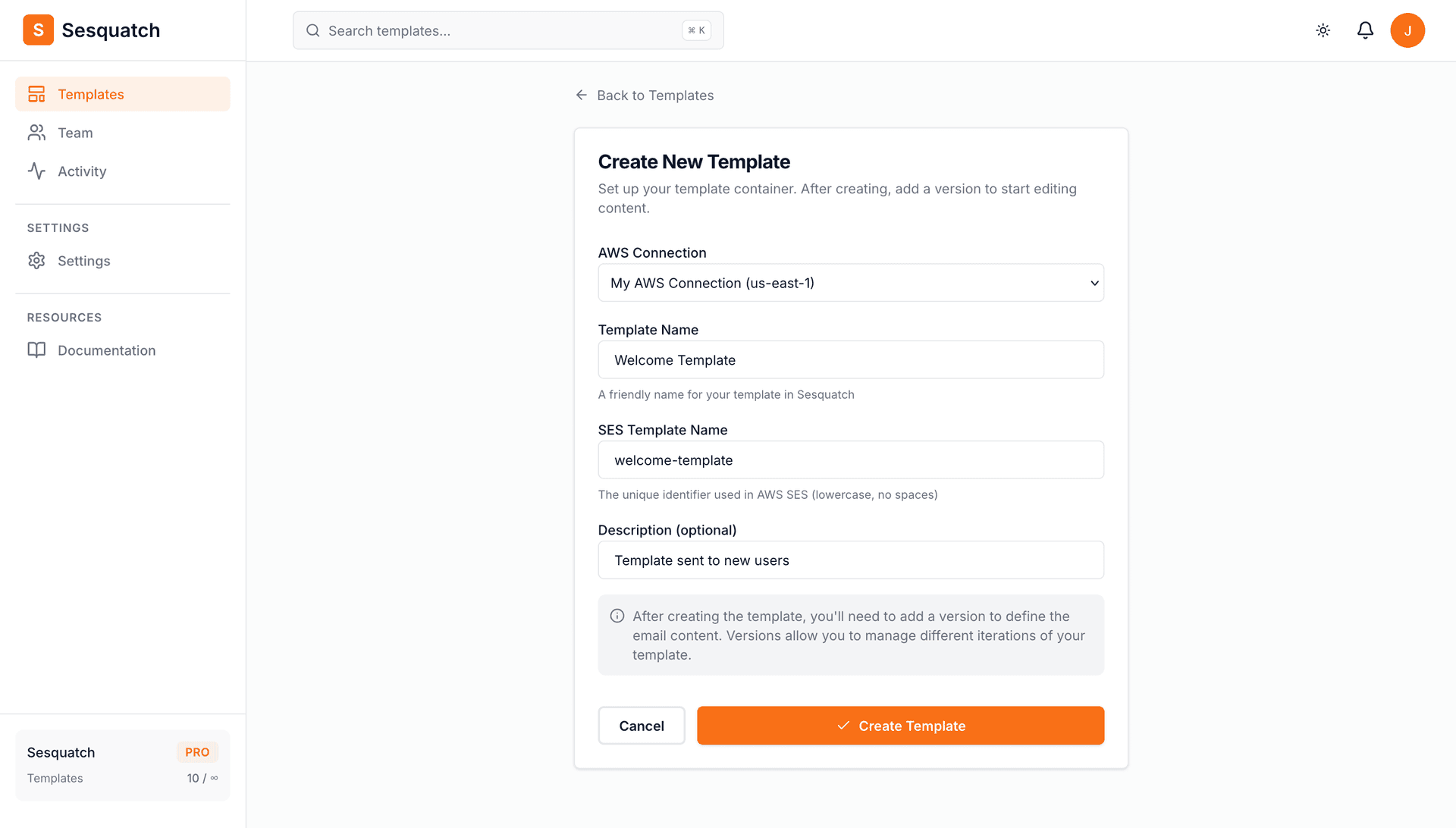
- 1.Navigate to Templates in your Sesquatch dashboard
- 2.Click "Create Template"
- 3.Enter a template name (this is for your reference in Sesquatch)
- 4.Enter an SES template name (this is the identifier used in AWS)
- 5.Select your AWS connection
- 6.Click Create to open the template editor
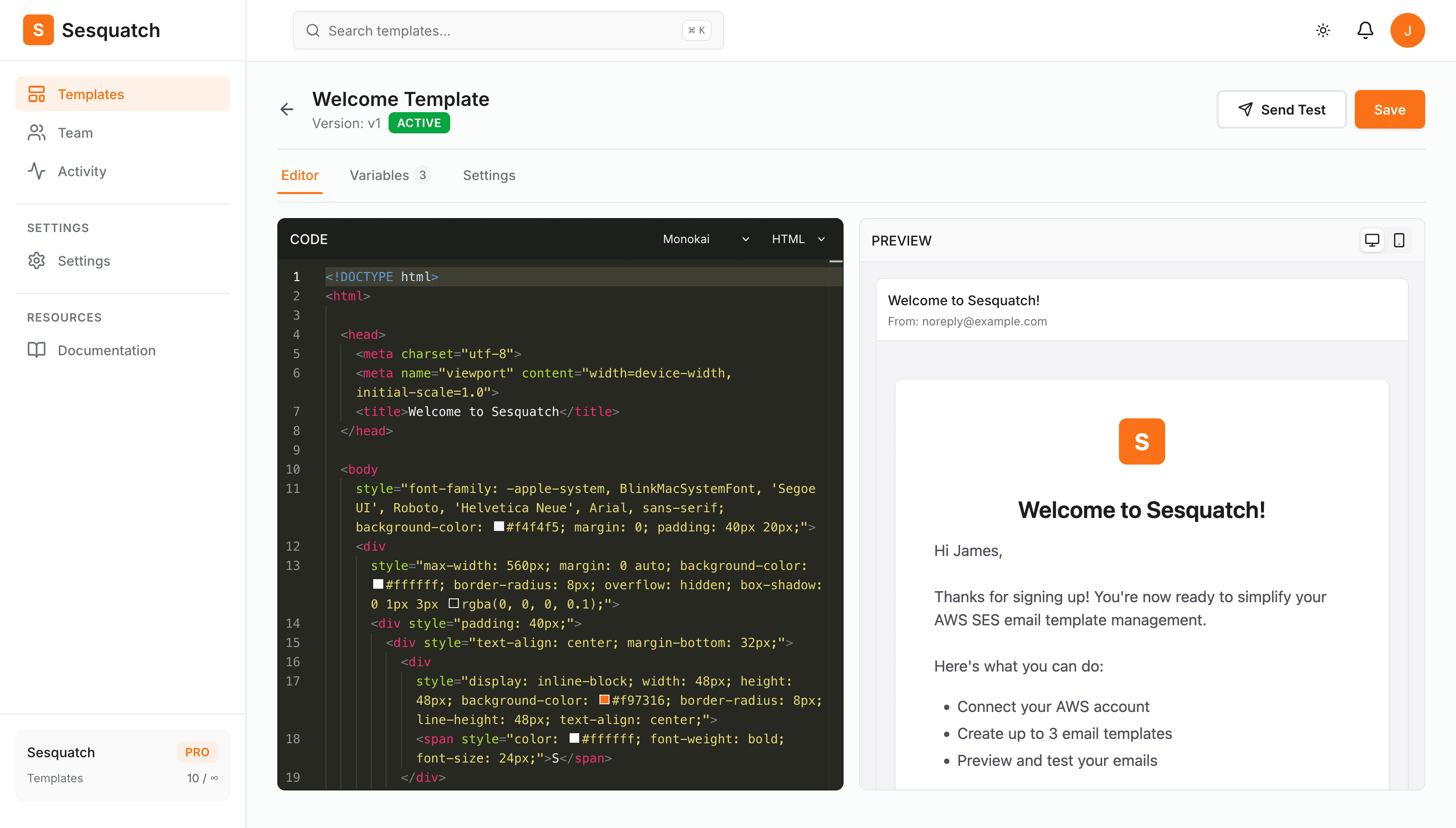
The Template Editor
The Sesquatch editor is split into two main areas:
Code Editor
Write HTML with syntax highlighting and auto-completion. The editor supports common keyboard shortcuts for efficient editing.
Live Preview
See your email render in real-time as you type. Toggle between desktop and mobile views to test responsiveness.
The plain text preview shows how your email appears to recipients whose email clients don't support HTML. This version is auto-generated from your HTML when you activate the template.
Basic HTML Structure
Here's a simple HTML email template to get you started:
<!DOCTYPE html>
<html lang="en">
<head>
  <meta charset="utf-8">
  <meta name="viewport" content="width=device-width, initial-scale=1.0">
  <title>Welcome Email</title>
</head>
<body style="margin: 0; padding: 0; font-family: Arial, sans-serif;">
  <table width="100%" cellpadding="0" cellspacing="0">
    <tr>
      <td align="center" style="padding: 40px 20px;">
        <h1 style="font-size: 24px;">Hello {{name}}!</h1>
        <p>Welcome to our platform. We're excited to have you.</p>
        <a href="{{activationUrl}}"
           style="display: inline-block; padding: 12px 24px;
                  background-color: #f97316; color: #fff;
                  text-decoration: none; border-radius: 6px;">
          Activate Account
        </a>
      </td>
    </tr>
  </table>
</body>
</html>
Email HTML Tips
- Use
tablelayouts for consistent rendering across email clients - Use
inline stylesinstead of external stylesheets - Set
widthon tables for responsive control - Use
altattributes on all images - Keep total email width around
600pxfor best compatibility
Template Variables
Variables allow you to personalize emails with dynamic content. Use double curly braces to insert variables that will be replaced when sending emails.
<!-- Simple variable -->
{{name}}

<!-- Nested object property -->
{{user.firstName}}
Important Note
AWS SES uses its own templating syntax. Sesquatch automatically converts variables to the SES format when deploying. Make sure your variable names match what your application sends when calling the SES API.
Version Control
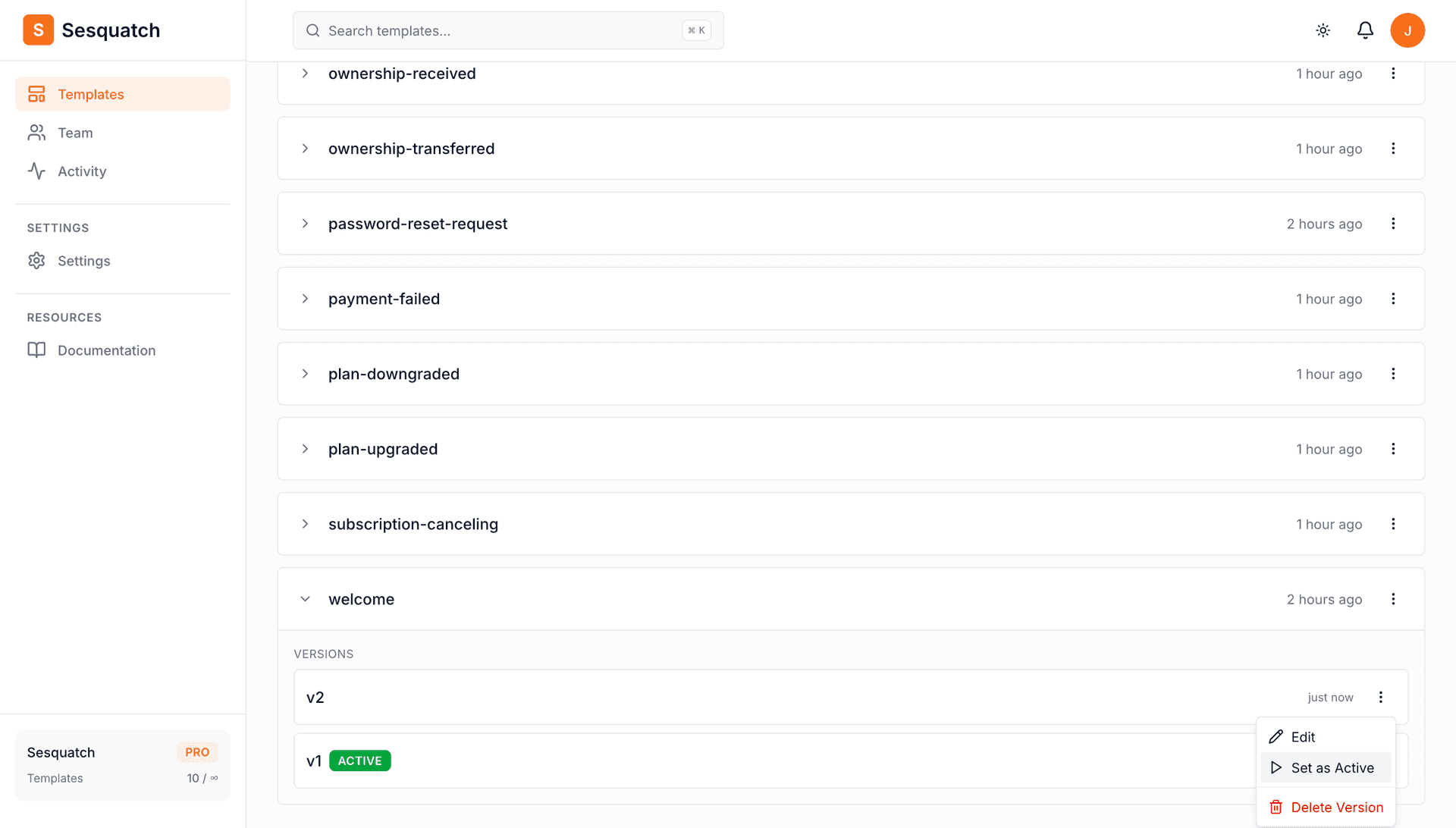
Sesquatch lets you manage multiple versions of each template, so you can iterate on designs:
- •Create versions - Save snapshots of your template as you iterate on the design
- •Activate - Set any version as "active" to deploy it to AWS SES
- •Delete - Remove old versions you no longer need
Deleting Templates
Sesquatch offers two options when removing templates, giving you control over what happens in AWS SES:
Remove from Sesquatch
Removes the template from Sesquatch only. The template remains in your AWS SES account and can be re-synced later if needed. Use this if you want to stop managing a template in Sesquatch but keep it active in AWS.
Delete Everywhere
Permanently deletes the template from both Sesquatch and AWS SES. This action cannot be undone. Use this when you no longer need the template at all.
Before Deleting
Make sure no applications are actively using the template before deleting it from AWS SES. Deleting an in-use template will cause send failures.
Best Practices
Keep it Simple
Stick to single-column layouts for mobile compatibility. Complex layouts often break in older email clients.
Use Web-Safe Fonts
Stick to fonts like Arial, Helvetica, and Georgia. Custom fonts won't render in most email clients.
Inline Images Carefully
Host images on a CDN and use full URLs. Many email clients block images by default.
Test Before Deploying
Always send test emails to verify rendering. Use the preview mode for quick checks.