Team Management
Learn how to invite team members, assign roles, and manage permissions in your Sesquatch organization.
Plan Limits
The number of team members you can invite depends on your plan. Free plans include 1 user (owner only), while Pro plans support up to 10 team members.
Inviting Team Members
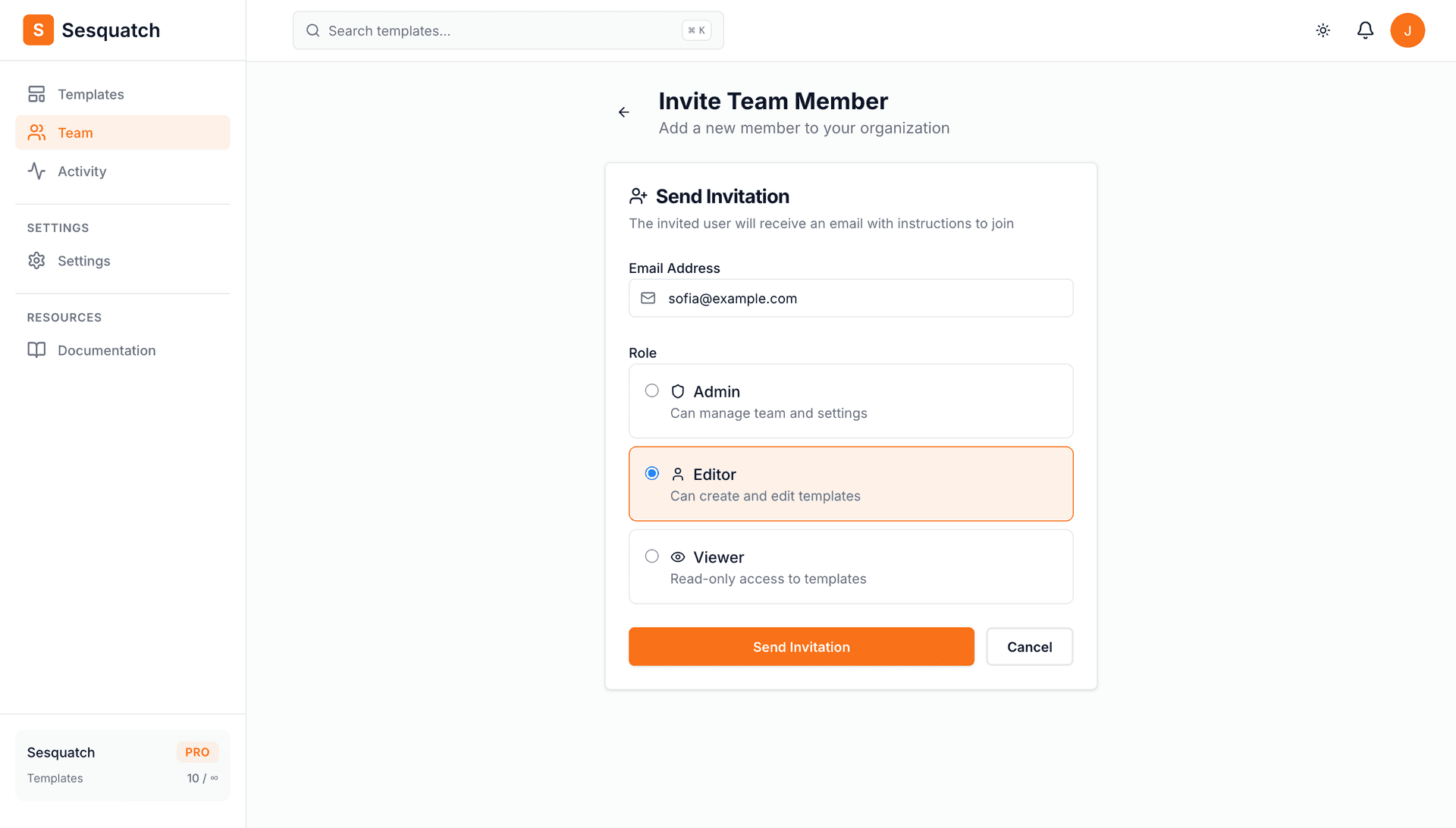
Owners and Admins can invite new team members to the organization.
- 1.Navigate to Team in your Sesquatch dashboard
- 2.Click "Invite Member"
- 3.Enter the email address of the person you want to invite
- 4.Select a role for the new member
- 5.Click Send Invite
Invitation Expiry
Invitations expire after 7 days. If the invitation expires, you can resend it from the Team page. The invited user will receive an email with a link to join your organization.
Roles & Permissions
Sesquatch uses role-based access control (RBAC) to manage what team members can do. There are four roles available:
Owner
Full access to everything. Can transfer ownership and delete the organization.
Admin
Can manage team members and all resources, but cannot access billing.
Editor
Can create and edit templates, but cannot manage team or connections.
Viewer
Read-only access. Can view templates but cannot make changes.
Changing Member Roles
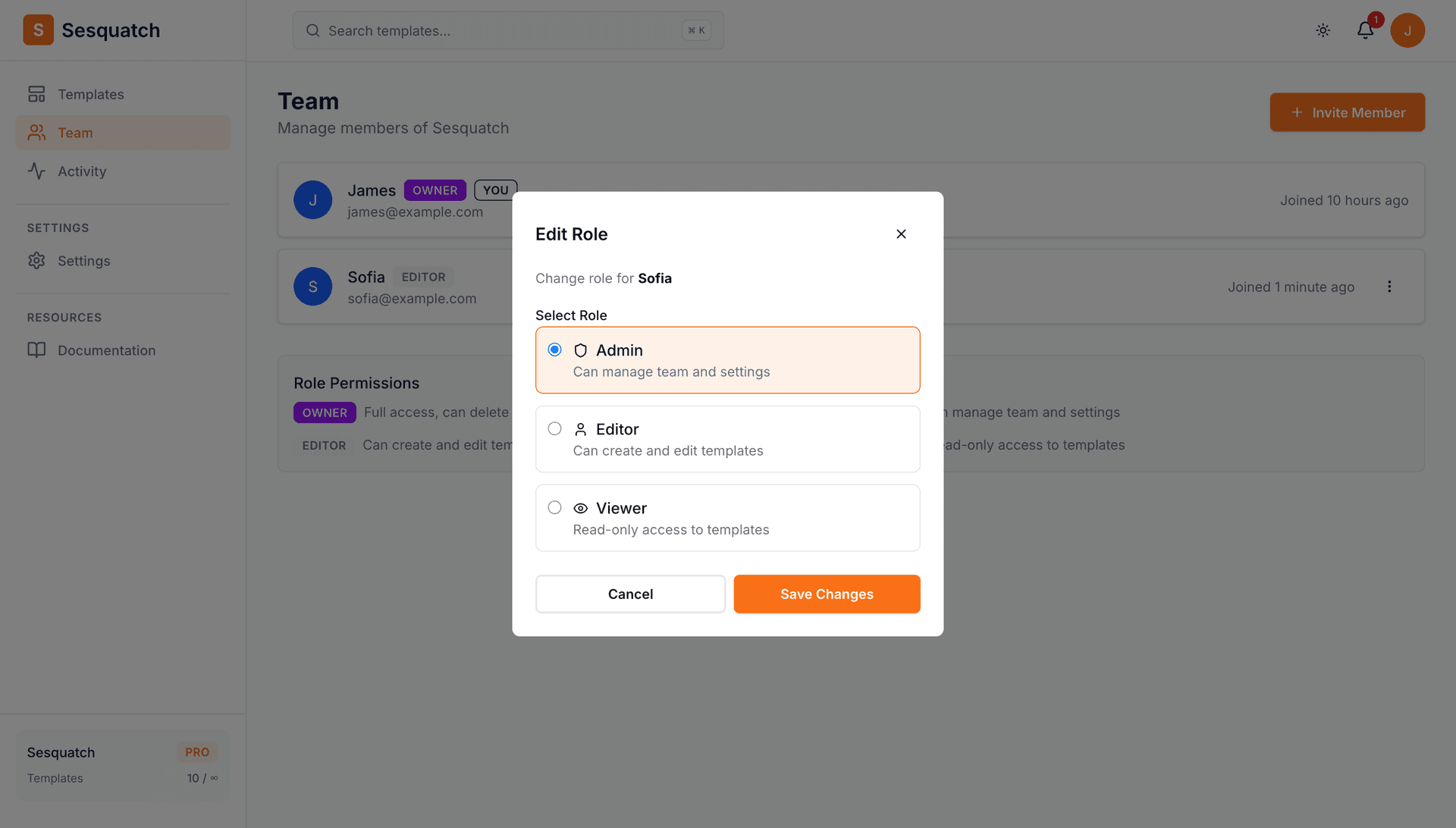
Owners and Admins can change the roles of other team members (except they cannot change the Owner's role).
- 1.Go to the Team page
- 2.Find the team member whose role you want to change
- 3.Click the dropdown menu (three dots) next to their name
- 4.Select "Change Role"
- 5.Choose the new role and confirm
Removing Team Members
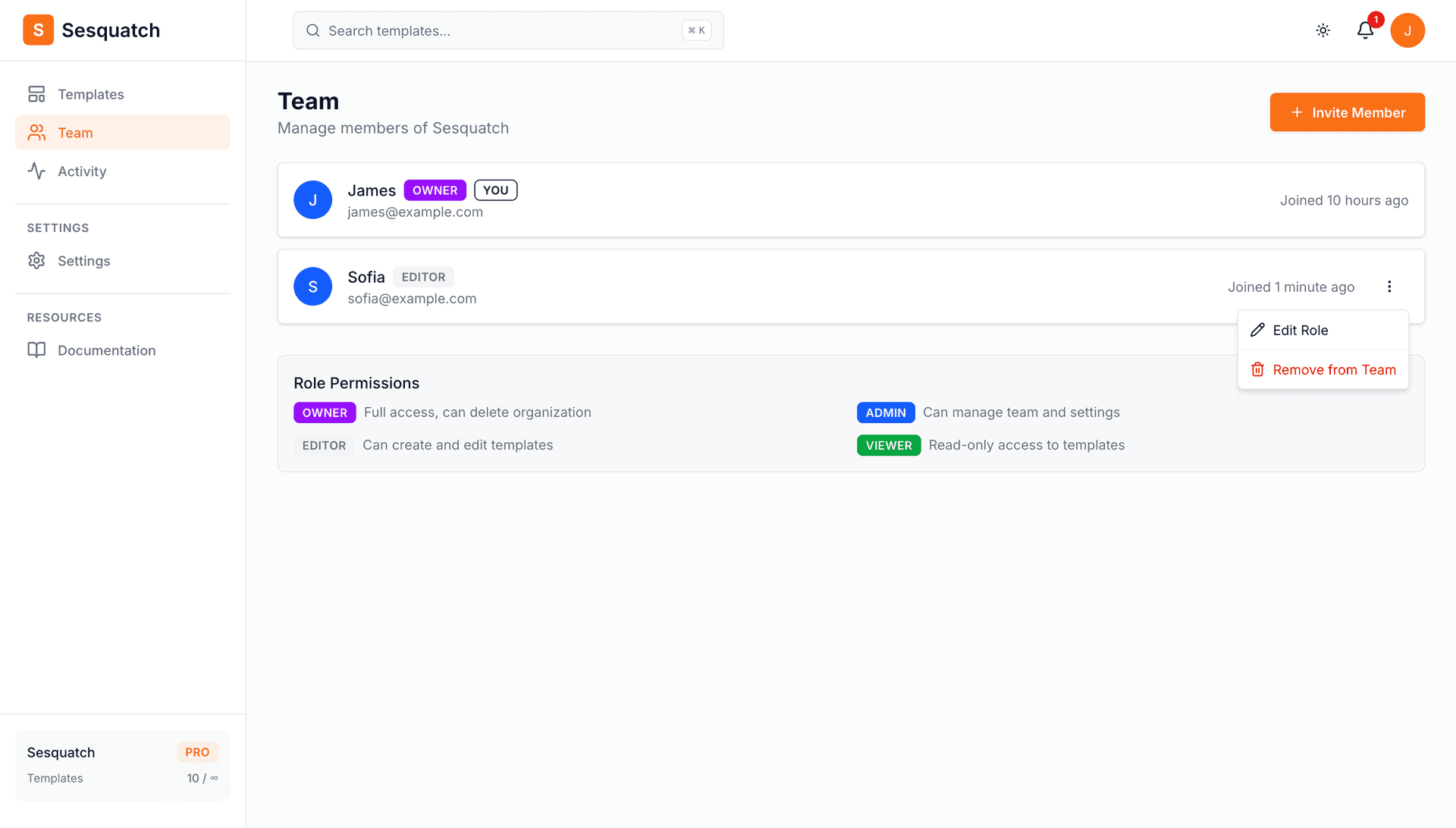
Owners and Admins can remove team members from the organization.
- 1.Go to the Team page
- 2.Find the team member you want to remove
- 3.Click the dropdown menu (three dots) next to their name
- 4.Select "Remove from team"
- 5.Confirm the removal
Note
Removed members immediately lose access to all organization resources. They can be re-invited later if needed. Admins cannot remove other Admins or the Owner.
Transferring Ownership
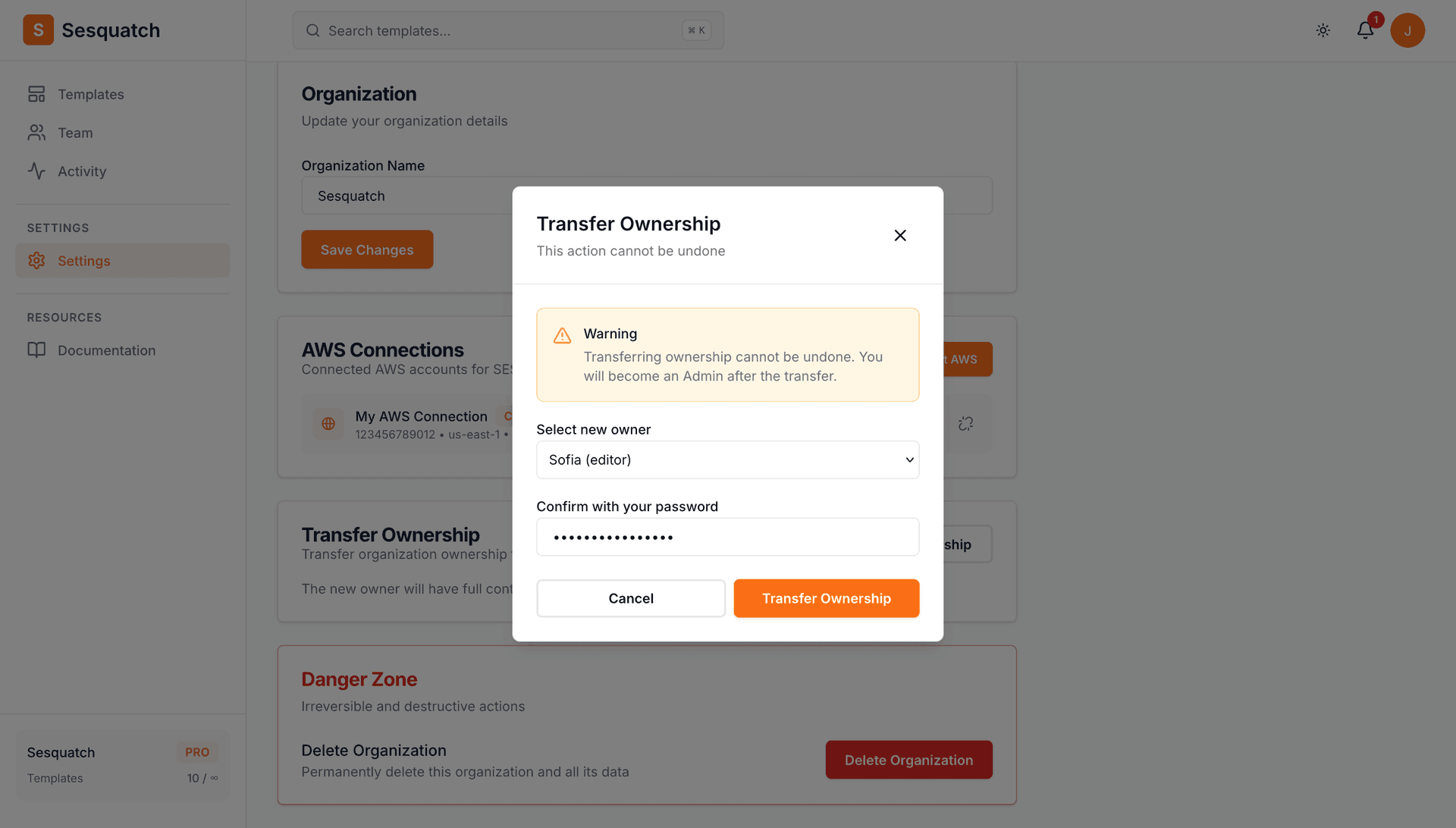
The organization Owner can transfer ownership to another team member.
- 1.Go to Settings
- 2.Find the "Transfer Ownership" section and click "Transfer Ownership"
- 3.Select the team member to transfer ownership to
- 4.Confirm by entering your password
Warning
Transferring ownership cannot be undone. You will become an Admin after the transfer. Make sure you want to transfer ownership before confirming.